Marketing Tools
Coding New Blocks
Developers only
This page is intended for developers who want to code new blocks and edit existing ones that are compatible with 4Site's template. The following text is just a short primer on the topic.
Our email code is created with MJML which provides a solid base for creating cross-client compatible email structure without getting into the complexities of manually nesting all your own Table elements.
The simplest way to get started with MJML is using the online editor to Try It Live.
Alternatively, using the VS Code Editor with the MJML Extension is a good tool for developers.
Code structure for new blocks
New blocks must:
- Start with an
mj-sectionelement. - Have a CSS class of
blockand a unique CSS class for your block, e.g.,demo-block. - Have a background color (typically white).
- Recommended: Include comments before and after the block to make identifying it in the built HTML easier.
Here is an example:
<!-- START: Three column block -->
<mj-section css-class="three-column-block block" background-color="#ffffff">

</mj-section>
<!-- END: Three column block -->
Then, we add mj-column element(s) inside the block to contain our content. For this example, say we want to make a block that has 3 columns with text inside them. Our basic block would look like this:
<!-- START: Three column block -->
<mj-section css-class="three-column-block block" background-color="#ffffff">
  <mj-column>
    <mj-text>Column 1</mj-text>
  </mj-column>
  <mj-column>
    <mj-text>Column 2</mj-text>
  </mj-column>
  <mj-column>
    <mj-text>Column 3</mj-text>
  </mj-column>
</mj-section>
<!-- END: Three column block -->
If you're using the online editor you can click "View HTML". Then copy your relevant section of HTML (between your comments) into a new block in Engaging Networks and begin setting up the Variable Replacements.
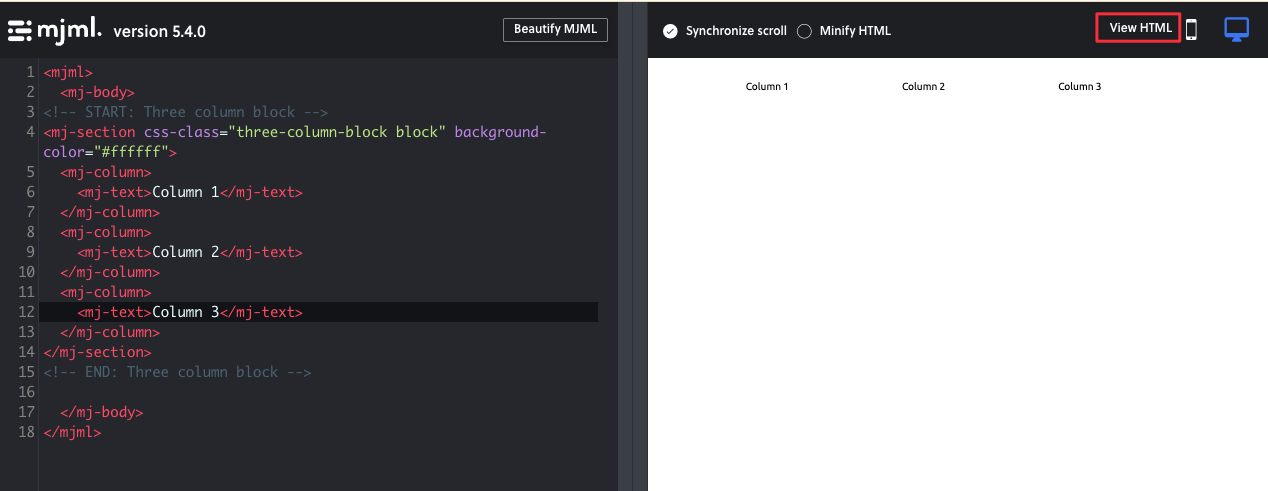
- If creating a new block:
- Copy this code into a new block in Engaging Networks.
- Configure any Variable Replacements needed for this block.
- If updating an existing block:
- Before starting, always duplicate your block to create a backup.
- Compare the existing code and copy any changes into the block. (Tip: you can use an online diff checker tool to compare the 2 sets of code)
- Once you've finished creating or editing your block, you can add it into a reference email to test it.
- Go to the testing section of the broadcast and send a test email to your testing service.
- Review the email to check that your block is looking as expected across various devices and clients. Remember to test all your configuration option values.
Warning
If your code changed styles or code in the head of the email, you'll need to update the template with these changes, then rebuild your email from scratch with the updated template.