Marketing Tools
Updating Variable Replacements
To adjust the configurable settings for email editors within a block, follow these steps:
- Find the specific block in Marketing Tools and duplicate it to preserve a backup version.
- Access the block and select the option to "Insert Variable Replacement."
- For generating a brand new replacement:
- Navigate to the "Create" tab and complete the necessary information in the provided fields.
- For modifying an existing replacement:
- Select the edit icon adjacent to the variable you wish to change.
- Refine the available settings.
- When your edits are complete, click "Done" followed by "Save Block."
- To embed your replacement variable into the block content:
- Position the cursor at the intended insertion point.
- Click the "Insert Variable Replacement" button.
- Identify your variable and click the "Insert" button
- Confirm the placement within the block is accurate.
- After completing your edits, do a QA check:
- Insert the modified block into a reference email for testing purposes.
- Navigate to the test tab of the broadcast and send a sample to your preferred testing platform.
- Verify the block displays correctly across different mail clients and screen sizes.
Example: adding a new background color option
To do this:
- All of your blocks have a background color option, so we could choose any. Let's do this on "Button Block".
- Open the block and click the "Insert Variable Replacement" button
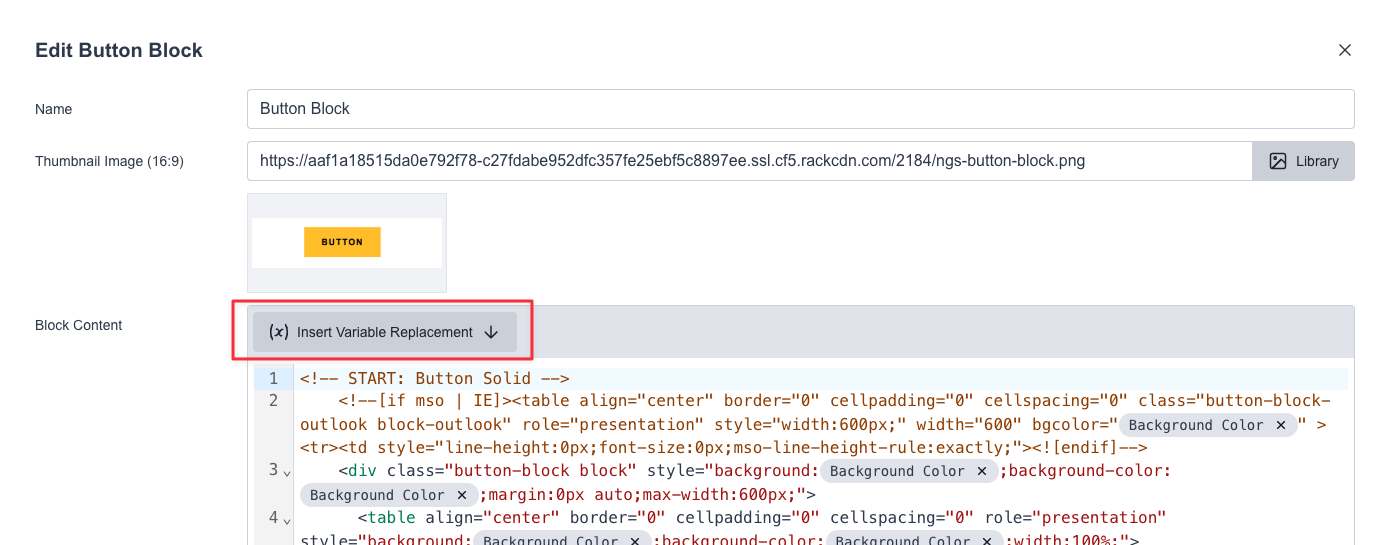
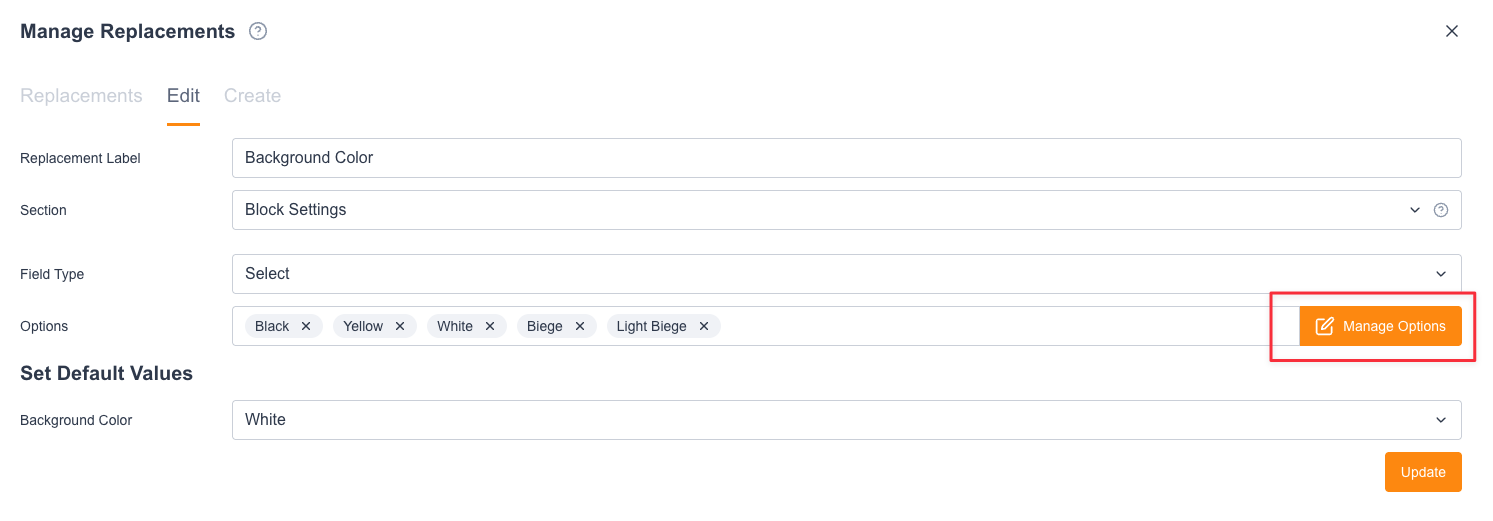
- Locate the "Background Color" replacement and click the pencil icon

- Inside the options click "Manage Options"
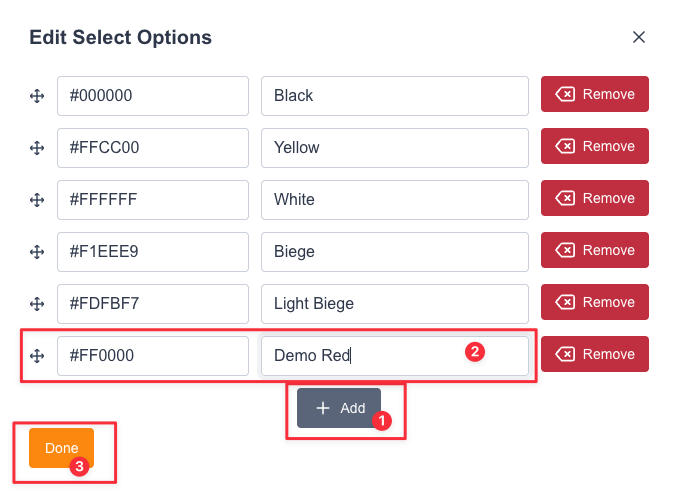
- Click "Add" to add a new option. Insert our hex code value and label. The value will be inserted into the email, and the label will be what is visible to the email builder.
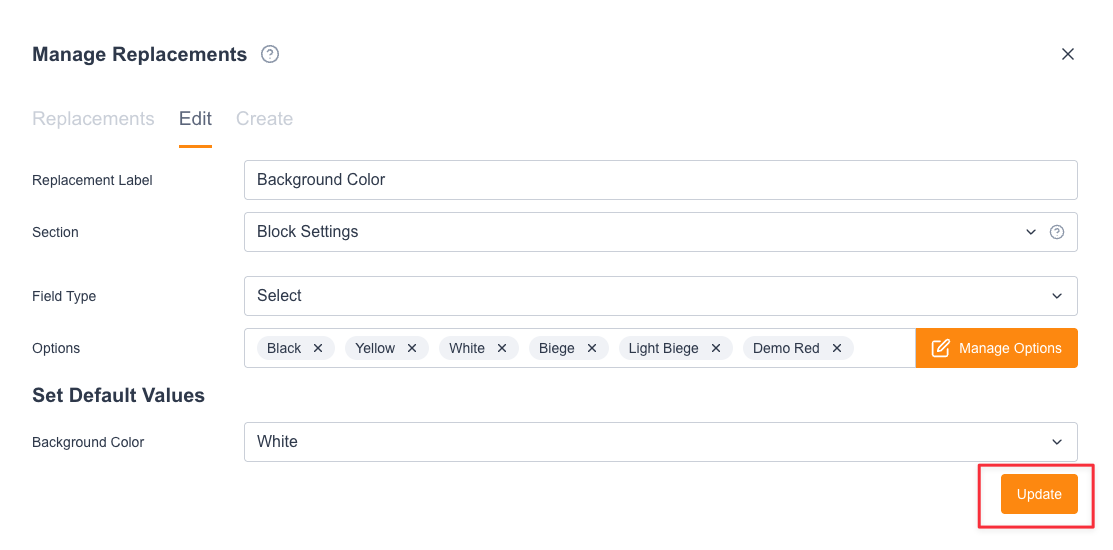
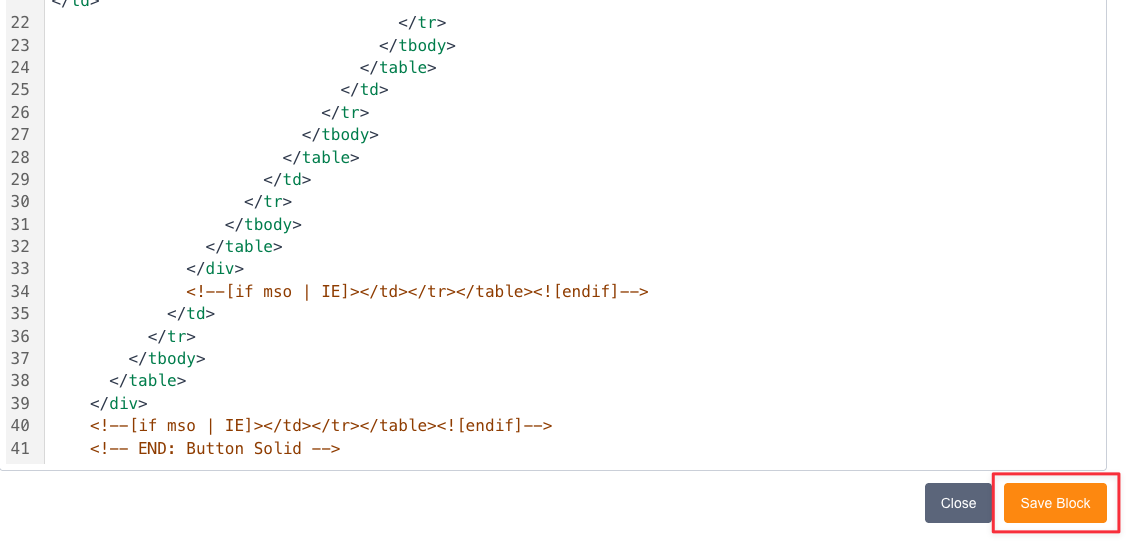
- After that we can click "Update" in the replacements modal, then "Save Block" at the bottom of the block.
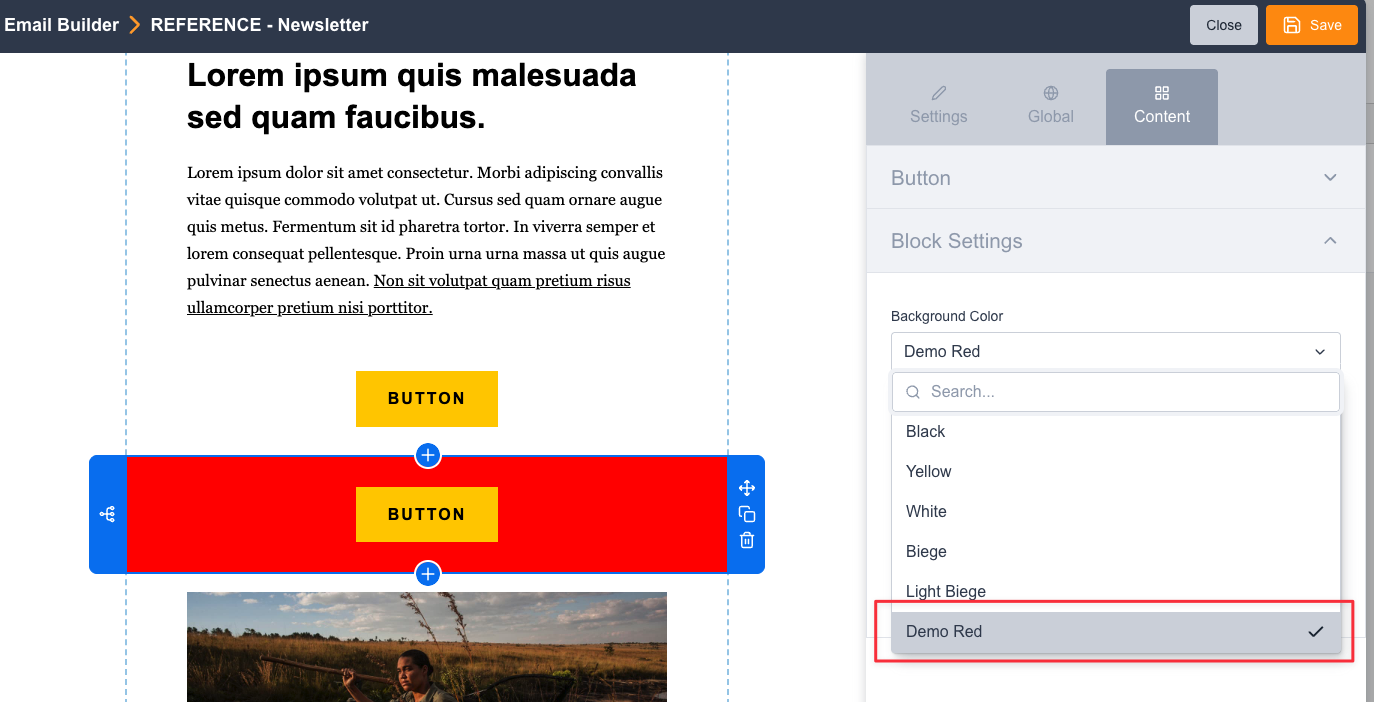
Go to an email broadcast and add in the new block, and we will see our new "Red" color option for this block.